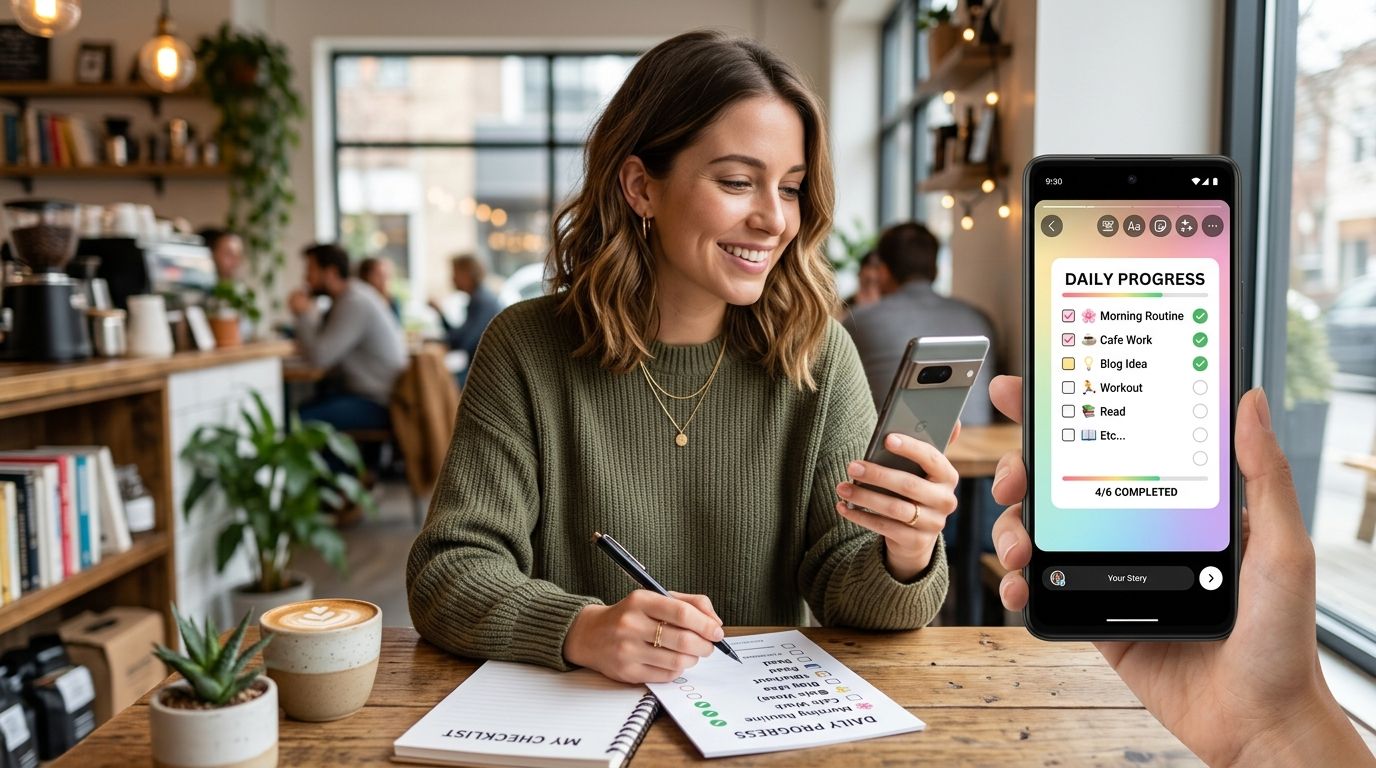
Screenshotting your checklist and dropping it into a Story with no plan makes for a blurry, cropped mess that gets three seconds of attention before someone swipes past. Set up a five-minute Instagram Stories workflow for your Triptyka checklist once, and every future update — a checked-off ballpark, a bourbon trail stop, a national park stamp — goes out looking like a real update instead of a random screenshot.
- Crop your checklist photo to 9:16 before opening Instagram Stories, or the app crops your progress numbers off the top or bottom.
- Use the text sticker to state your count directly ('14/30 ballparks checked off') instead of relying on Instagram's built-in progress bars, which can't read a photo.
- Save a Highlight named after your checklist so a 24-hour Story becomes a permanent progress log on your profile.
- A weekly recap Story using Instagram's Layout feature beats posting one Story per stop when you're on a multi-day trip.
Why this matters
Instagram Stories is where hobby-tracking culture already lives — golfers post scorecards, hikers post trail maps, and collectors post checklists. A bucket-list checklist tracker only works as a bragging tool if the progress is visible somewhere other than a binder on your shelf.
Stories are ephemeral by design, which is exactly why they fit checklist updates better than a permanent grid post. Nobody wants their feed cluttered with 30 separate "checked off another ballpark" photos, but a Story disappears in 24 hours unless you save it. That makes it the right format for the small, frequent wins that come with tracking a bucket-list passport in 2026 — a lighthouse visited, a diner crossed off, a golf course played.
Before you start
- An Instagram account with Stories enabled (personal or business — both work identically for this).
- Your filled-in checklist, either the printed passport or the digital version you're annotating in an app like GoodNotes.
- The gotcha: Instagram Stories crop to a 9:16 vertical frame. A full-page checklist photo shot in landscape or square gets its top and bottom sliced off the moment you post it — reformat before you open the app, not after.
Set up your checklist screenshot workflow
- Open your checklist — on paper, in GoodNotes, or synced to Google Drive — and find the section you just updated.
- Take the photo or screenshot in portrait orientation, framing tight enough that your checkmarks and the checklist title are both visible.
- Crop the image to a 9:16 ratio using your phone's built-in photo editor before saving it to your camera roll. This is the step people skip, and it's the one that determines whether your progress count survives the Story crop.
Expected result: a portrait image where the checklist name and your latest checkmarks sit comfortably inside the frame, with no critical text within 10% of the top or bottom edge.
Configure your Instagram Story
- Open Instagram and tap the camera icon in the top-left corner, or swipe right from your feed.
- Tap the gallery icon at the bottom left and select the cropped checklist photo you just saved.
- Tap the sticker icon (the square smiley face) in the top toolbar.
- Select the Text tool and type your progress directly — something concrete like "14/30 ballparks" or "6 lighthouses down, 4 to go." Concrete numbers get more replies than "making progress!"
- Resize and reposition the text box so it sits over open space on your checklist photo, not over the checkmarks themselves.
Expected result: a Story preview showing your checklist photo with a legible, bolded progress count layered on top, readable at a glance without zooming in.
Add your progress stats and stickers
- Tap the sticker icon again and add a location sticker if the update ties to a specific stop — a stadium, a state park, a distillery.
- Add a poll or question sticker ( "Guess which one I'm hitting next?") if you want replies instead of silent views — polls consistently pull more interaction than plain photo Stories.
- Tag the location or, if you're posting about a themed checklist, mention it by name in the text so followers who don't know your hobby can follow along.
- Tap Your Story to post.
Expected result: a Story that names what you're tracking, shows the number, and gives at least one interactive element for followers to tap.
Share a multi-stop trip recap instead of a single check-off
If you just came back from a weekend that covered four or five stops on your national parks or lighthouse checklist, posting five separate Stories is overkill and most followers won't watch all of them.
- Open Instagram's Layout feature (tap the camera icon, then swipe to Layout at the bottom).
- Select 2-4 photos from the trip — the checklist photo plus a shot of the actual stop.
- Add one text sticker summarizing the whole trip: "3 down this weekend, 27 to go."
- Post as a single Story instead of a series.
This format works better for anyone tracking a bourbon trail road trip or a scenic byway drive, where the win is the trip as a whole, not any single stop.
Find your next checklist to track
Browse printable bucket-list passports for ballparks, parks, trails and more.
Troubleshooting
- Text gets cut off at the top or bottom of the Story. You skipped the 9:16 crop step. Go back to your camera roll, crop the original photo, and re-upload.
- The checklist photo looks blurry once posted. Instagram compresses images uploaded from low light. Retake the photo near a window or under a bright lamp before cropping.
- Followers can't tell what checklist you're tracking. Add a text sticker naming it directly — "MLB Ballpark Passport" or "National Parks Checklist" — instead of assuming context carries over from a past post.
- The Story disappears and you lose the record. Save it to a Highlight named after the checklist (tap Highlight at the bottom of your own Story before it expires) so your progress log stays on your profile past 24 hours.
- You want to post progress without a new photo every time. Keep one clean flat-lay shot of your checklist on hand and just swap the text sticker's number each update — the visual doesn't need to change every time the count does.
Customize your workflow
Once the basic loop is working, expand it. If you're tracking digitally, syncing your checklist into Google Drive means the latest version is always one tap away when you're standing at a stop with spotty signal — that setup is covered in the guide on how to sync your checklist to Google Drive. If you'd rather work from a physical passport, printing a fresh copy at a local print shop keeps your flat-lay photos consistent trip after trip, which matters more than it sounds like once you're posting weekly.
For collectors managing more than one checklist at a time — say a bourbon trail list alongside a national parks list — keep the text sticker format consistent across both ( "X/Y checked off") so followers can tell your checklists apart by the number format alone, not just the photo.
FAQ
What's the best way to share checklist progress on Instagram Stories?
Crop your checklist photo to a 9:16 vertical frame first, then add a text sticker stating your exact count, like '14/30 ballparks.' Skipping the crop step is the most common reason progress photos get cut off.
Can I turn a Story into a permanent post?
Yes. Tap Highlight at the bottom of your own Story before the 24-hour window closes, then add it to a Highlight named after your checklist so it stays visible on your profile.
Do I need a business account to post checklist progress?
No. Personal and business Instagram accounts both support the same Story tools, stickers, and Highlights used in this workflow.
How do I make my Story more interactive instead of just a photo?
Add a poll or question sticker asking followers to guess your next stop. Polls and questions get more replies than a plain photo Story with text alone.
What's better for a multi-stop road trip: one Story per stop or one recap?
Use Instagram's Layout feature to combine 2-4 photos into a single recap Story with one summary count. Most followers won't watch five separate Stories from the same weekend.
Why does my checklist photo look blurry after posting?
Low-light photos get compressed harder by Instagram's upload process. Retake the shot in brighter light before cropping and posting.
Should I tag the location in my Story?
Yes, if the update ties to a specific stop like a stadium or state park. The location sticker adds context and can put your Story in front of others tracking the same spot.
One last thing
The single biggest engagement difference on checklist Stories isn't the photo quality — it's whether you state a real number. "14/30" gets replies. "Making progress on my list!" gets scrolled past. Say the count every time, even when it feels repetitive; that's the detail followers actually stop for.