You finally checked off Lighthouse #14 on your printable passport, and now you're staring at a coffee-stained PDF wondering how you'll ever back it up before it gets lost in a glovebox. Sync your printable checklist to Google Drive and you get a permanent, cross-device copy of your progress that survives spilled coffee, lost phones, and a decade of road trips. Instead of manually re-downloading your Etsy file every time you switch devices, set up one Drive folder that holds the master copy and a digital tracker that mirrors your checkmarks, so your progress follows you from laptop to phone to tablet automatically.
- Google Drive syncs your Triptyka printable checklist across every device once it's saved to one shared folder.
- A companion Google Sheet lets you check off visits digitally without printing a new copy every time.
- Drive's mobile scan feature backs up a handwritten, marked-up passport in under two minutes.
- The main gotcha: not every printable PDF has fillable form fields, so plan for scan-and-sync instead of type-and-sync.
Why this matters
A $9.99 printable passport is cheap to buy and expensive to lose. Collectors tracking 30 MLB ballparks or all 63 national parks over several years need their progress to outlast a cracked phone screen or a printer that ran out of ink mid-trip. Drive sync solves that by keeping one authoritative copy in the cloud, updated the moment you check a box, whether you're using the Triptyka passport for ballparks, bourbon trails, or lighthouses.
This isn't a native integration — Triptyka checklists are PDFs, not a connected app — so the "sync" here is a manual setup you do once in 2026. After that, it runs itself.
Before you start
- A Google account with Drive access — the free storage tier is plenty for a handful of PDF and Sheets files.
- Your downloaded Triptyka checklist file from your Etsy purchase. Keep the original PDF untouched; work from copies.
- The Google Drive mobile app if you plan to scan a physically marked-up passport, or a desktop browser if you're building a digital tracker instead.
- The gotcha: most printable checklists, including Triptyka's, are flat PDFs without fillable checkbox fields. Type into the PDF in Drive's viewer and nothing happens. Plan to either print and mark by hand (then scan), or build a parallel digital tracker in Sheets — don't waste ten minutes hunting for a checkbox field that isn't there.
Set up your Drive folder
- Open Google Drive and click New, then Folder.
- Name it something specific. "Triptyka Passports" beats "Checklists" once you own more than one.
- Click New again, select File upload, and upload your downloaded PDF — ballparks, national parks, or whichever checklist you bought.
- Right-click the uploaded file, choose Share, and set it to Anyone with the link with Viewer access if you want family to follow your progress without editing anything.
Expected result: your original checklist lives in Drive and opens identically on any signed-in device — phone, tablet, or laptop.
Build the digital tracker in Google Sheets
- Inside the same Drive folder, click New, then Google Sheets.
- Open your PDF checklist in a second tab and list each item — stadium, lighthouse, park — down column A. A 30-item MLB list takes about ten minutes to transcribe once.
- Type Visited as the column B header, then select the rows below it and use Insert, then Checkbox.
- Add a column C headed Date visited and a column D headed Notes for the best seat, the don't-miss food, the weather that day.
- Rename the sheet tab to match the checklist so it's obvious at a glance.
Expected result: a checkbox-enabled tracker that saves to Drive automatically every time you tap a box. There is no save button to forget.
Turn on cross-device sync
- Install the Google Drive and Google Sheets apps on your phone.
- Sign in with the same Google account you used on desktop.
- Open the tracker from the app. It should show the exact checkbox state you left on your laptop.
- Tap a checkbox mid-trip — right after walking into park number 12 — then reopen the sheet on desktop that night to confirm it matches.
- In the Sheets app, open the file's overflow menu and turn on Available offline so the tracker still works in a canyon with no signal.
Expected result: a box checked on your phone at the ballpark appears on your laptop at home within seconds. Offline edits upload the moment you regain signal.
Second workflow: sync a physically marked passport
Plenty of collectors prefer pen on paper to tapping a screen. The ritual is the point. If that's you, skip the Sheets tracker entirely and back up the paper instead.
- Print your Triptyka checklist and mark it up by hand as you visit each stop — the same way you'd work through a national parks checklist for RV travelers over a summer.
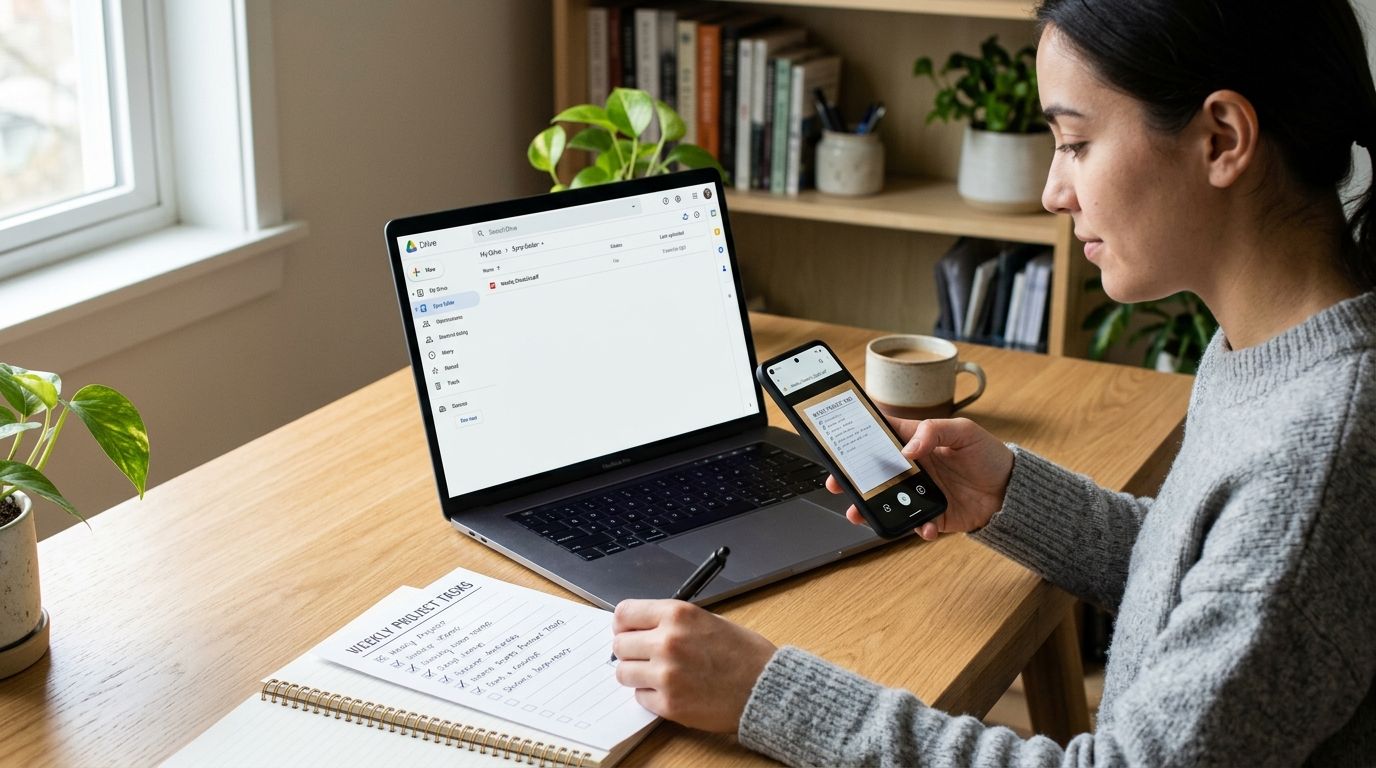
- Open the Google Drive mobile app, tap the + button, then Scan.
- Photograph the marked page, crop to the checklist borders, and save it into your Triptyka Passports folder.
- Rename the scan with the date so versions sort chronologically.
- Rescan every few weeks so the backup never trails the paper original by more than a handful of visits.
Expected result: a dated, legible scan of your handwritten progress sits in Drive even if the paper copy ends up in a hotel recycling bin.
Troubleshooting
- Checkboxes won't accept typing in the PDF. Flat PDFs have no form fields. Use the Sheets tracker or the scan method rather than fighting the viewer.
- Mobile shows stale checkmarks. Force-close and reopen the Sheets app. Sync catches up within seconds once the app refreshes its connection.
- Scans come out blurry or cropped short. Rescan in daylight and let Drive's auto-crop find the page edges instead of framing freehand.
- Storage warning appears. A few checklist PDFs and scans total under 20 MB. If Drive is full, something else — usually a photo backup — is the culprit.
- Shared link opens as view-only when you wanted editing. Permissions don't always inherit from the folder. Change sharing on the specific file.
Customize your workflow
Once one checklist syncs cleanly, the same folder-plus-tracker pattern covers every Triptyka passport you own: bourbon trail, lighthouses, golf courses, covered bridges. Add a summary row at the top of each sheet with a COUNTIF formula so you see "18 of 30 checked" without scrolling.
Collectors weighing this against a dedicated checklist app should read the Triptyka vs Checkli comparison before subscribing to anything. A printable passport plus a free Google Drive folder is the right setup for collectors who want to own their file permanently; a subscription app is better only if you need shared editing across a group. Honest downside of the Drive approach: you build the tracker yourself, and nobody sends you a reminder to update it.
Grab a printable checklist to sync
Start with a Triptyka bucket-list passport, then set up your Drive backup in minutes.
FAQ
How do I sync a printable checklist to Google Drive?
Upload the PDF to a dedicated Drive folder, then build a Google Sheet with checkboxes in the same folder to track progress. Drive syncs both files across every device signed into your account.
Can Triptyka checklists sync to Google Drive automatically?
No. Triptyka checklists are downloadable PDFs, not a connected service, so you save the file to Drive once and let Drive's own cross-device sync handle the rest in 2026.
Do printable checklist PDFs have fillable checkboxes?
Most printable checklists are flat PDFs with no form fields. Build a companion Google Sheet with real checkboxes, or print the page and mark it by hand.
What's the fastest way to back up a marked-up paper checklist?
Use the Scan option in the Google Drive mobile app. Photographing, cropping, and saving a marked passport page takes under two minutes.
Will my checklist progress show on both phone and laptop?
Yes, provided both devices are signed into the same Google account and the tracker sits in a Drive folder. Checkbox changes appear on the other device within seconds.
Is Google Sheets better than a printed checklist for tracking visits?
Sheets wins for instant cross-device sync and searchable notes. Printed passports win for the tactile ritual of checking a box, which is why many collectors run both.
How much Drive storage does a printable checklist use?
A single checklist PDF plus a few scans totals under 20 MB, comfortably inside Google's free storage tier.
Can I share my synced checklist with family?
Yes. Set the file to Viewer access in Drive's Share panel so family can follow along without altering your tracker.
One last thing
Add a column for the date of each visit before you add anything else. Five years into a 30-ballpark run, the dates are what turn a checklist into a record you'll actually reread — and they're the one detail nobody remembers to backfill. Set up the Drive folder in 2026 before your next trip, not after you've lost a half-finished passport.