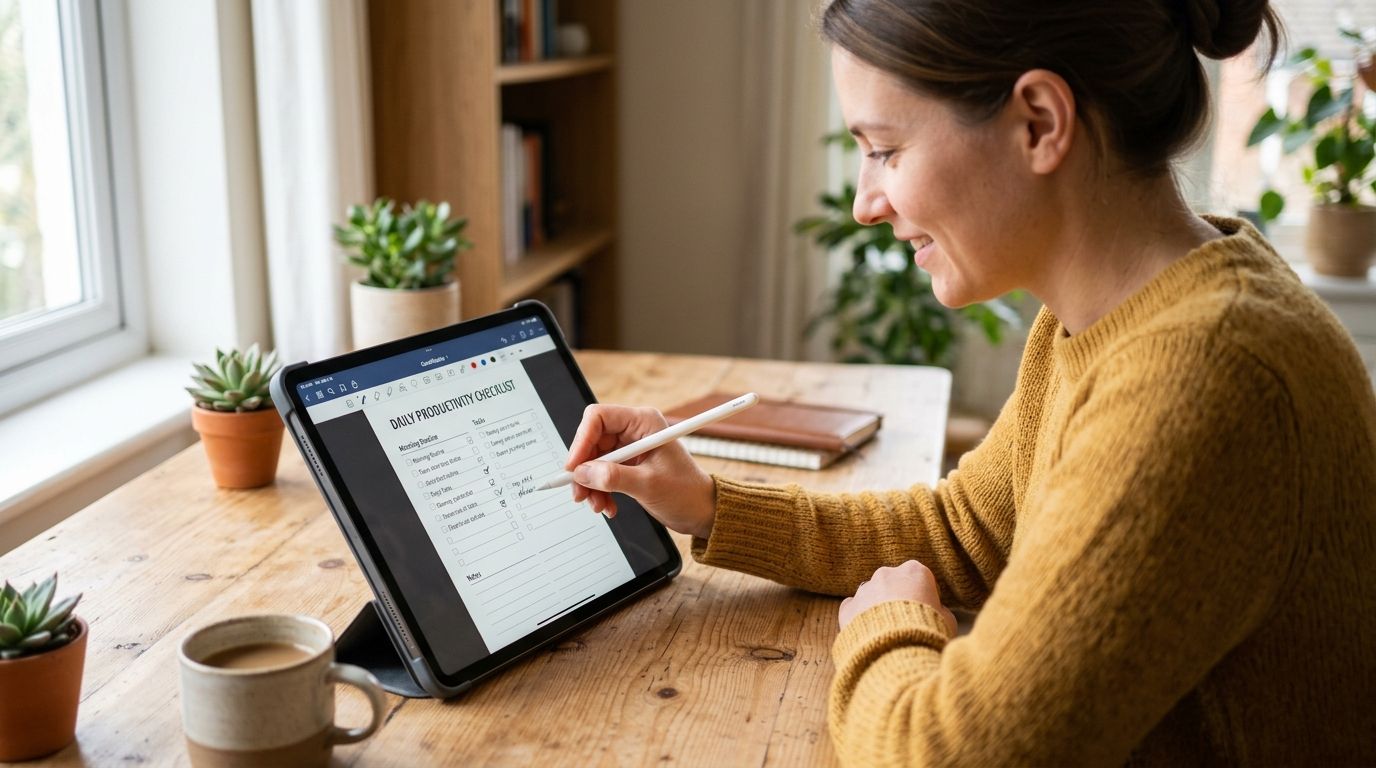
Printing a Triptyka checklist once means guarding one sheet of paper for years — lose it, and every ballpark or lighthouse you already checked off is gone. Instead of protecting a paper passport, import the PDF into GoodNotes once so every tap, stamp, and photo lives in one synced notebook you can't leave in a rental car.
- Import a Triptyka PDF checklist into GoodNotes via Library > Import File, not by opening it from Files or Mail directly.
- Printed checkboxes on a PDF are flat ink — build a reusable checkbox stamp so tapping actually marks progress.
- Group every checklist (ballparks, bourbon trail, lighthouses) into one GoodNotes folder so switching passports takes one tap.
- GoodNotes syncs through iCloud, so a checklist you check off at a national park updates on your iPad and Mac automatically.
- Insert checklist pages into an existing travel journal instead of a standalone document when you already keep trip notes in GoodNotes.
Why this matters
A printed Triptyka checklist is designed to be filled in with a pen — great for a fridge or a glovebox, useless once it's soaked, folded, or left at home. GoodNotes turns the same PDF into something you always have on you, with the added benefit of adding photos, notes, and dates next to each stop.
By 2026, most GoodNotes users are running the app across iPad, iPhone, and Mac with iCloud sync turned on by default, which is exactly what makes a digital bucket-list passport more durable than a paper one. Once the checklist lives in your GoodNotes library, checking off a ballpark in Cincinnati shows up checked on your Mac by the time you land back home.
Before you start
- GoodNotes installed on the device you'll use most for checking things off — iPad is the easiest for tapping stamps, though the Mac app works for reviewing.
- The original PDF file saved locally, not just previewed inside your email client or Etsy's app — GoodNotes can't import a file it can't see in Files.
- The gotcha: the checkboxes printed on a Triptyka checklist are flat graphics, not interactive fields. Importing the PDF alone doesn't make them tappable — you have to build a stamp first, or you'll spend the whole road trip circling boxes with the pen tool instead of tapping them.
Set up your GoodNotes document
- Open GoodNotes and go to the Library tab.
- Tap the + button in the top corner and choose Import File.
- Locate the downloaded checklist PDF in Files (check your Downloads folder if you saved it straight from Etsy).
- Select Import as new document rather than adding it to an existing notebook.
- Rename the document with the checklist's category — "National Parks Passport" or "Bourbon Trail Passport" — so it's easy to find later.
Expected result: the PDF opens as a multi-page GoodNotes document matching the original printable's page count, with every page visible in the page browser.
Add a tappable checkbox stamp
- Select the Shapes tool and draw a small square roughly the size of the printed checkboxes on your checklist.
- Tap the Stamps icon in the toolbar, then Add Stamp, and save the square you drew.
- Name the stamp something obvious, like "Checkbox."
- From now on, tap Stamps > Checkbox over any box on the page to mark a site as visited.
Expected result: tapping the stamp drops a filled square directly on top of the printed checkbox, giving you a visual, tappable way to track progress without freehand marking.
Organize checklists into a category folder
- In the Library tab, tap Edit and select New Folder.
- Name it something like "Bucket List Passports."
- Drag each imported Triptyka checklist — national parks, lighthouses, MLB ballparks — into that folder.
- Repeat the import steps above for every additional checklist you own.
Expected result: one folder holds every passport you've imported, so switching between an RV national parks checklist and a bourbon trail passport takes a single tap instead of a Files search.
Insert a checklist into an existing travel notebook
If you already keep a running travel journal in GoodNotes, skip the standalone document and drop the checklist pages straight into that notebook instead.
- Open your existing travel notebook.
- Switch to the page thumbnail view and tap the + icon.
- Choose Import and select the checklist PDF.
- Pick Insert at end to add the pages after your current notes, or choose a specific page position.
Expected result: the checklist pages now live inside your ongoing trip journal, so trip photos and passport pages sit side by side instead of splitting across two documents.
Troubleshooting
- PDF looks blurry or pixelated after import. The file you imported was likely a screenshot or a low-res copy rather than the original PDF — re-download the checklist from your Etsy purchase page and import that file directly.
- Import button is greyed out. GoodNotes can only import files saved locally in the Files app, not files still sitting in an email attachment preview. Use Share > Save to Files first, then import.
- Checkbox stamp lands in the wrong spot. Zoom in before stamping — GoodNotes places stamps at the exact pinch-zoom position, so aligning at 100% zoom often misses small printed boxes.
- Checklist disappears after import. Search the Library search bar by document name before assuming it's gone; misfiled documents are far more common than deleted ones.
- Pages appear out of order. Re-check the original PDF's page order before import, or drag pages manually in the page browser once it's already in GoodNotes.
“A checklist you can tap beats a checklist you can lose.”
Customize your workflow
Once one checklist is imported and stamped, the setup carries over to every other Triptyka passport with zero extra learning. Add a second stamp for "favorite visit" or a star rating if you want more than a binary checked/unchecked system — GoodNotes stamps aren't limited to one design per document.
For collectors working through a specific theme, browse the full catalog of Triptyka checklist trackers and import a few at once so your GoodNotes folder is stocked before your next trip. Anyone building out a park-heavy itinerary in 2026 gets extra mileage pairing the digital import with the best national park checklist trackers for route planning before departure.
Browse more Triptyka checklists
Find the next bucket-list passport to import and stamp.
FAQ
What is the best way to import a printable checklist into GoodNotes in 2026?
Save the PDF locally in Files, then use Library > Import File inside GoodNotes rather than opening it from an email or browser preview. This keeps the full page count and resolution intact.
Can I make a printable checklist interactive in GoodNotes?
Yes, but only if you build a checkbox stamp first — imported PDFs arrive as flat pages with no tappable fields. Draw a square with the Shapes tool and save it as a stamp to tap over each printed box.
Do I need GoodNotes for iPad, or does GoodNotes for Mac work too?
GoodNotes for Mac can open and review an imported checklist, but tapping stamps and marking boxes is far easier on iPad or iPhone with a touchscreen. Most people import once and check things off on mobile.
Why does my imported checklist look blurry in GoodNotes?
A blurry import usually means the file was a screenshot or compressed copy instead of the original PDF. Re-download the checklist from your original Etsy purchase and import that file directly.
Can I sync my checked-off Triptyka checklist across devices?
Yes — GoodNotes uses iCloud sync by default, so a checklist stamped as complete on your iPad updates automatically on your iPhone and Mac. No manual export is needed.
What file format do Triptyka checklists come in for GoodNotes import?
Triptyka checklists download as PDF files, which is the exact format GoodNotes imports natively through Library > Import File.
Is importing a checklist into GoodNotes better than printing it?
For anyone tracking multiple bucket-list categories, digital import wins on durability and search — a printed sheet can be lost or damaged, while a GoodNotes document syncs and stays searchable across devices.
Can I import multiple Triptyka checklists into one GoodNotes notebook?
You can either import each as a separate document inside one folder, or insert several checklists as pages within a single existing travel notebook using the Insert at end option.
One last thing
GoodNotes stamps aren't limited to checkboxes — collectors running through a Triptyka bourbon trail or lighthouse passport often build a second stamp for "best view" or "skip next time," turning a static checklist into a running trip journal without touching a second app. That one habit is the difference between a passport that just tracks visits and one that actually helps you plan the next trip.