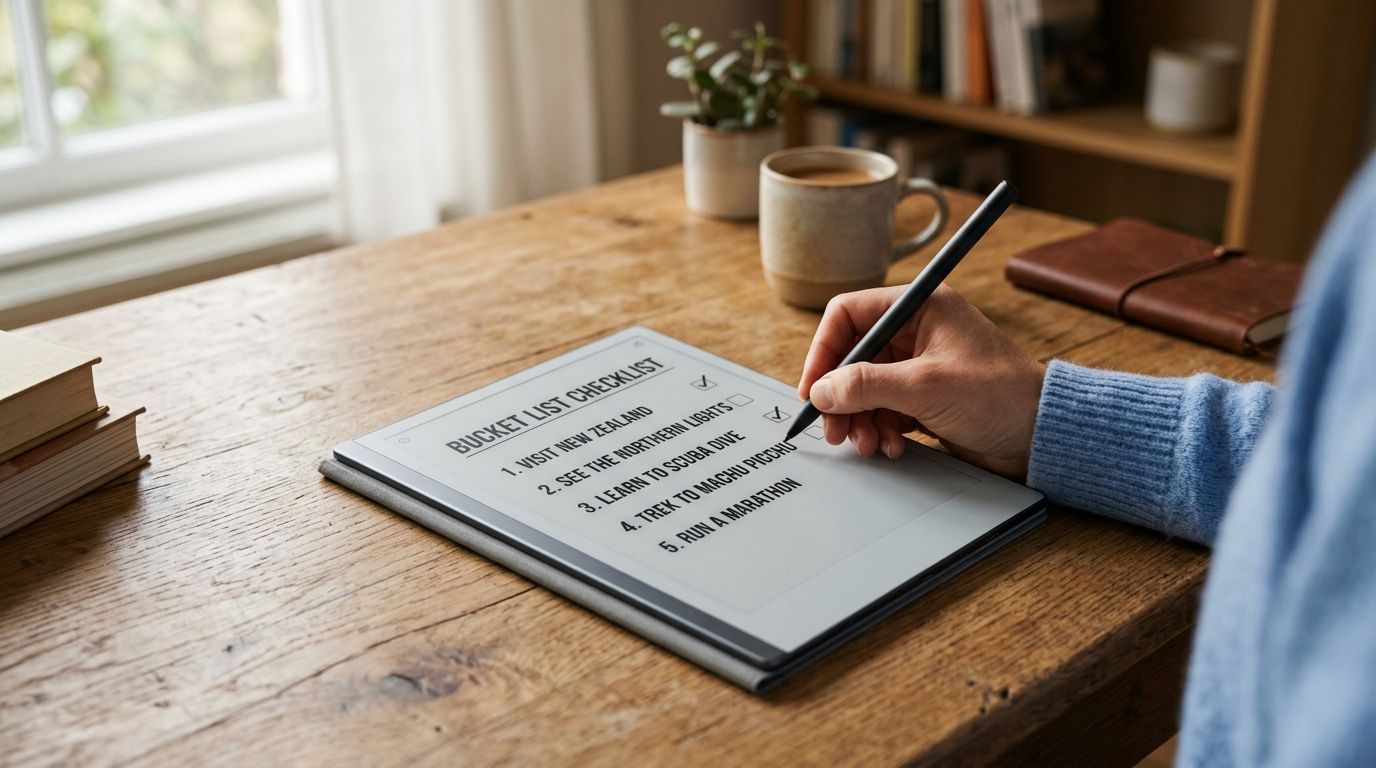
Downloading a Triptyka checklist is the easy part. Getting the checkboxes, columns, and badge-tracker layout to actually look right on a reMarkable tablet is where most collectors get stuck. Instead of squinting at a shrunk-down PDF or fighting with margins that crop your right-hand column, set up the import correctly once and every checklist you buy afterward loads the same way in under five minutes.
- Load a checklist PDF onto a reMarkable tablet in under 5 minutes using the desktop app or the web uploader.
- reMarkable flattens PDF checkboxes on import, so you mark boxes with the stylus, not a tap, on every Triptyka checklist.
- The reMarkable app syncs one imported checklist across every paired device automatically once you are signed in.
- No software installed? Upload straight from a browser at my.remarkable.com instead of the desktop app.
- Two-column checklists render best in landscape orientation on the 10.3-inch reMarkable screen.
Why this matters
A printable checklist works fine on paper, but a lot of collectors carry a reMarkable instead of a binder for road trips, ballpark tours, or bourbon trail runs. The e-ink screen is easy on the eyes in daylight, it holds a charge for days, and you can mark off a stadium or a lighthouse with the stylus the same way you'd tick a box in ink.
The catch: reMarkable was built for handwriting and note-taking, not fillable PDF forms. When you import a checklist PDF in 2026, reMarkable does not preserve tap-to-check form fields the way a desktop PDF reader does. You will be handwriting the checkmark with the stylus. That is not a bug — it is how the device's PDF viewer works — and once you know it going in, the whole workflow is straightforward.
You can browse Triptyka's checklist library first, download the PDF to your device, and then run the steps below.
Before you start
- A reMarkable account and a paired device. Finish the tablet's initial Wi-Fi and account setup before any import will sync.
- The checklist PDF saved locally. Download your Triptyka checklist to your computer or phone first — you cannot import directly from a browser tab.
- The reMarkable desktop app, mobile app, or a browser. Any one of the three works; pick whichever matches where the PDF is saved.
- The gotcha: reMarkable flattens interactive PDF checkboxes on import. If a checklist has clickable form fields, they will not be tappable on the tablet — you draw an X or checkmark with the stylus, exactly as you would on paper. Plan for that before you get three pages in and wonder why nothing responds to a tap.
Set up the reMarkable app connection
- Install the reMarkable desktop app (Mac or Windows) or the reMarkable mobile app (iOS or Android) if you have not already.
- Open the app and sign in with the same account tied to your tablet.
- Confirm your tablet appears under My files in the app's sidebar — this confirms the sync connection is live before you import anything.
Expected result: the app shows your tablet's existing folders and notebooks, meaning any file you drop in from this point syncs over Wi-Fi without a cable.
Import the checklist PDF
- In the desktop app, click My files, then click Import — or drag the PDF straight from your downloads folder into the file list.
- On mobile, tap the + icon in My files, select Import file, then choose your Triptyka checklist PDF from device storage.
- Wait for the upload bar to finish. A multi-page checklist typically takes under 30 seconds on a normal Wi-Fi connection.
- Rename the file to something you will recognize later — "National Parks Passport" or "Bourbon Trail Checklist" — using the rename option in the file's context menu.
Expected result: the checklist appears in My files with a thumbnail preview, and opening it on the tablet shows the full first page without you touching the reMarkable directly.
Organize your checklists into folders
- Create a folder named Bucket List Checklists using the New folder button in My files.
- Drag your imported checklist into that folder.
- If you track more than one collection — say a national parks checklist for RV travelers alongside a ballpark passport — give each its own subfolder so you are not scrolling past a dozen files mid-trip.
Expected result: the tablet's home screen shows one tidy folder instead of a loose pile of PDFs, which matters more than it sounds once you own five or six checklists.
Variant: import through the web app instead
Use this path on a shared computer, a work laptop where you cannot install software, or any time you would rather not run another background app.
- Go to my.remarkable.com in any browser and sign in with your reMarkable account.
- Click Upload document in the top corner.
- Select your downloaded checklist PDF and confirm the upload.
- Open the tablet — the file syncs over Wi-Fi within a few seconds, with nothing installed on that computer.
Expected result: the checklist lands in My files on the tablet exactly as it would through the desktop app, without leaving software behind on a machine that is not yours.
Troubleshooting
- Checkboxes do not respond to taps. Expected behavior — reMarkable flattens form fields on import. Switch to Pen mode and draw a checkmark or X over the box.
- The right-hand column looks cropped. Rotate the page to landscape using the orientation toggle in the reader view. Most two-column checklists are laid out wider than the tablet's default portrait view.
- File uploaded but is not on the tablet. Confirm the tablet has Wi-Fi on and is connected. Sync will not happen over a dead connection — the file sits queued in the cloud.
- Text looks blurry when you zoom. The source file was probably a screenshot or a forwarded low-resolution copy. Re-download the original checklist PDF and import that instead.
- Pages are out of order. Delete the file from My files and re-import it. This is almost always an interrupted upload, not a problem with the PDF.
Customize your workflow
Once one checklist loads cleanly, the same five-minute process covers every collection you add in 2026. Collectors tracking multiple themes — ballparks, lighthouses, national parks — tend to build one folder per topic so a road trip pulls up exactly one file instead of a mixed stack. If you are weighing a tablet setup against a general-purpose tracking app, read how Triptyka compares to Checkli before you commit to a format.
Add another checklist to the folder
Browse the full Triptyka collection and download your next passport for the reMarkable.
FAQ
How do I load a checklist PDF onto a reMarkable tablet?
Download the PDF to your computer or phone, then import it through the reMarkable desktop app, mobile app, or the my.remarkable.com web uploader. The file syncs to your tablet over Wi-Fi within seconds.
Can I check off boxes on a reMarkable the way I would on paper?
Yes, but not by tapping. reMarkable flattens interactive PDF checkboxes on import, so you draw the checkmark with the stylus, the same motion as marking a printed page.
Do I need the reMarkable app to upload a PDF?
No. You can upload directly through a browser at my.remarkable.com without installing any software, which is the easier route on a shared or work computer.
Why does my checklist look cropped on the reMarkable screen?
Two-column checklists are usually laid out wider than the tablet's default portrait view. Switch the page to landscape orientation in the reader and the full layout fits the 10.3-inch screen.
Will my checklist sync across multiple reMarkable devices?
Yes. As long as both devices are paired to the same reMarkable account, the imported file appears under My files on each one automatically.
Is a reMarkable better than printing a Triptyka checklist?
Neither wins outright. Printing is faster to start marking and needs no device, while a reMarkable keeps every checklist you own in one folder and never needs a fresh sheet of paper.
What file format does a reMarkable need for a checklist?
PDF is the standard format and the one Triptyka checklists ship in. The device also reads EPUB, but checklists are built as PDFs so the layout holds on both paper and screen.
How long does importing a checklist take?
Under five minutes end to end, including install and sign-in. The upload itself usually finishes in under 30 seconds on normal Wi-Fi.
One last thing
The detail almost nobody checks before a first import: reMarkable's viewer scales a wide, two-column checklist down to fit its 10.3-inch portrait screen, and that scaling is what crops the right column on ballpark and lighthouse trackers. Flip to landscape once on page one and the file keeps that orientation the next time you open it — a one-time fix, not a per-session annoyance.