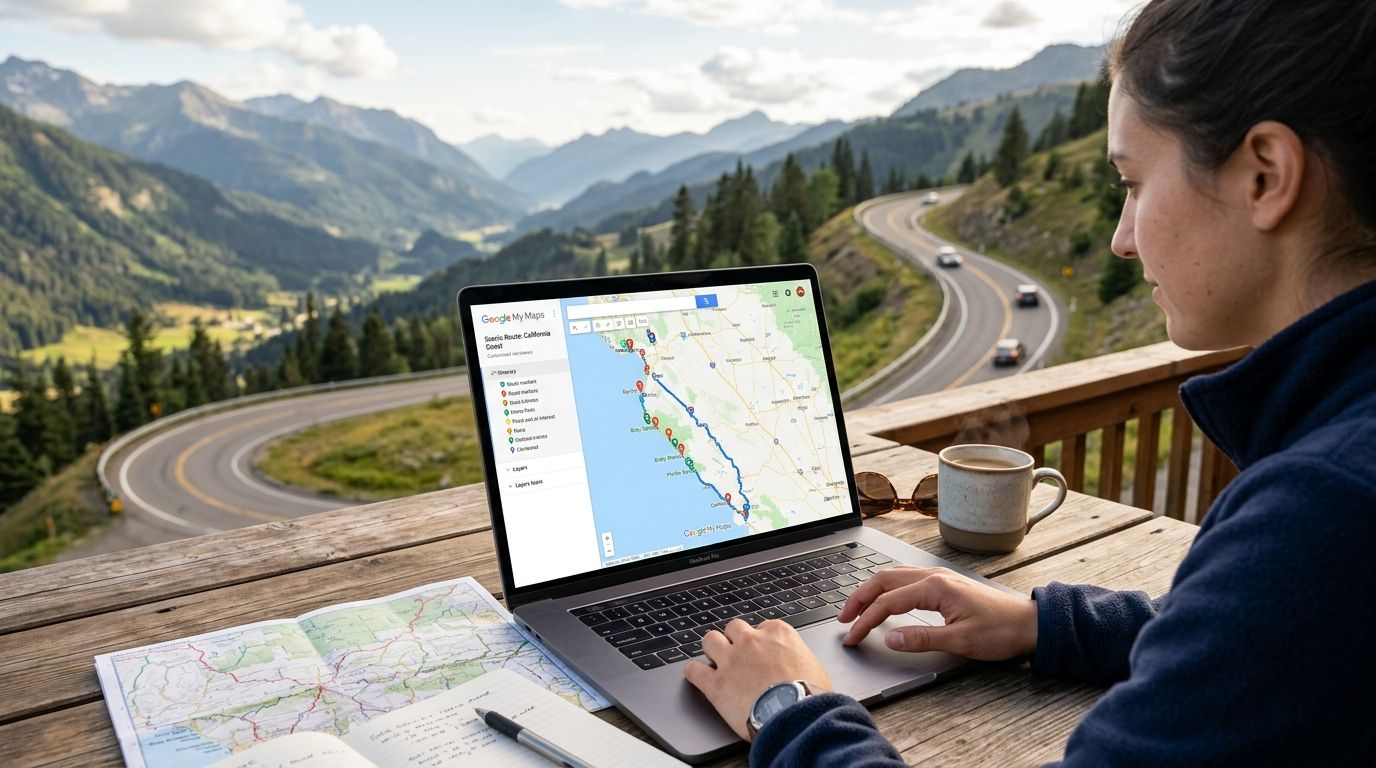
You've got twelve stops picked for a scenic byway drive, they're scattered across three browser tabs, and by the time you're actually on the road half of them are addresses you half-remember. Instead of re-Googling every overlook and diner from the driver's seat, build one Google My Maps file before you leave so every stop, detour, and gas station shows up as a tap.
- Building a scenic byway itinerary in Google My Maps takes under 30 minutes once your stop list is final.
- Use the Add a line tool for the actual byway route, not Directions, or Google will reroute you onto the interstate.
- Layers keep lodging, food, and overlooks separate so the map stays readable at 15 stops or more.
- My Maps caps you at 10 layers and 2,000 lines/shapes/points per layer, plenty for any single byway.
- Pair the map with a printable byway checklist so you're checking off stops even when your phone has no signal.
Why this matters
A scenic byway isn't a straight line from A to B, it's a route with a dozen small decisions baked in: which overlook, which detour, which town has the one diner worth the stop. Google Maps' default driving directions optimize for speed, which means they'll happily route you around the parts of the byway that make it a byway.
A custom My Maps file fixes that because you control the route line, not the algorithm. It also survives a dead phone battery in a way a bookmarks folder doesn't, because you can print it or screenshot it before you lose signal in a canyon.
Triptyka built its scenic byway checklist trackers around exactly this gap: a printable that lists the stops so you're checking boxes on paper while the map handles the driving. The two together cover what a phone app alone won't, since most byway stretches have dead zones.
Before you start
- A Google account signed in at mymaps.google.com — My Maps doesn't work through the standalone Google Maps app for editing, only for viewing a finished map.
- Your stop list finalized first. Adding stops one at a time as you research is fine, but decide your start and end points before you draw the route line, since redrawing a long line after the fact is tedious.
- The gotcha: My Maps limits you to 10 layers and roughly 2,000 total lines, shapes, and points per layer. That's more than enough for a single byway, but if you're mapping a multi-state road trip with several byways stacked in one file, split them across layers early rather than cramming everything into one.
Set up your base map and layers
- Go to mymaps.google.com and click Create a New Map.
- Click Untitled map at the top left and rename it something specific, like "Blue Ridge Parkway — Fall 2026."
- In the layer panel, rename Untitled layer to something like "Byway Route." Click Add layer to create separate layers for "Overlooks & Stops," "Food," and "Lodging."
Expected result: you now have a named map with at least two empty layers, ready to hold your route and your stops separately.
Add your byway as a route line
- Select your "Byway Route" layer so it's active (the layer name will be bolded or highlighted).
- Click the Draw a line tool (the squiggly-line icon in the toolbar) and choose Add line or shape.
- Click along the actual byway on the map, following the real road, not a straight shortcut. Double-click to end the line.
- Name the line and click Save.
Expected result: a colored line traces the physical byway on your map, independent of anything Google's driving directions would suggest.
This is the step people skip, and it's the one that matters most. If you instead use Add directions and drop pins as waypoints, Google will optimize the route for time and may quietly detour you off the byway entirely for a faster parallel highway.
Drop markers for every stop
- Switch to your "Overlooks & Stops" layer.
- Click the Add marker tool (the pin-drop icon) and click each overlook, trailhead, or scenic pull-off on the map.
- Name each marker and add a short description — mile marker, best time of day, or a one-line note like "best sunset view on the route."
- Repeat on the "Food" and "Lodging" layers for restaurants and places to stay, searching by name in the search bar and clicking Add to map on the result.
Expected result: every stop on your byway has its own labeled pin, color-coded by layer, so you can toggle food or lodging on and off without cluttering the route.
Style your map so it's scannable at a glance
- Click the paint-bucket icon next to each layer to change its color — a common pattern is blue for the route line, green for overlooks, orange for food.
- Click Individual styles if you want specific markers (like a must-see overlook) to stand out with a different icon.
- Click Preview to see the map as a viewer will see it before sharing.
Expected result: a color-coded map where the route, food, and lodging are visually distinct even when zoomed out.
Turn one master map into a multi-byway road trip tracker
If you're stringing together more than one scenic byway on the same trip, do this in a single map with separate layers per byway rather than separate map files. Click Add layer for each additional byway, repeat the route-line and marker steps, and rename each layer with the byway's name.
This matters for van-lifers and long-haul road trippers stitching together several routes over a week or more, since one shareable map beats juggling four. Triptyka's scenic byway checklist for van lifers is built for exactly this kind of multi-week, multi-byway trip and pairs well with a layered map like this.
Troubleshooting
- The route line doesn't match the road exactly. My Maps' free-draw tool snaps loosely to roads but isn't pixel-perfect. Zoom in before clicking points along tight curves or switchbacks for a cleaner match.
- You've hit the 10-layer limit. Consolidate similar categories (merge "Food" and "Lodging" into one "Stops" layer) rather than starting a second map file, which breaks the single-share-link convenience.
- A rural address won't geocode. Small-town byway stops sometimes lack a clean street address. Search by the business name plus the nearest town instead of a raw address, or drop a manual pin using the marker tool.
- Viewers can edit your map when you didn't want them to. Check the sharing settings — click Share, then confirm collaborators are set to Can view instead of Can edit unless you actually want joint editing.
- The map looks fine on desktop but pins are hard to tap on mobile. Reduce the number of visible layers by default; toggle off "Food" or "Lodging" until you need them, since a byway with 20+ pins on one screen gets cramped on a phone.
Customize your workflow
Once the map works for one byway, the same layer structure scales to any route-based trip. If your next drive is a distillery route instead of a scenic byway, the process barely changes — Triptyka's guide on planning a bourbon trail road trip route with Google Maps walks through the same line-and-marker approach applied to a different kind of route.
For the paper side of the trip, a printable checklist still earns its spot in the glovebox. Checking off a stop on paper takes zero battery and works in the dead zones a byway is famous for.
Get the scenic byway checklist
A printable stop-by-stop tracker to pair with your My Maps route.
FAQ
How do I make a scenic byway itinerary in Google My Maps?
Create a new map at mymaps.google.com, use the Add a line tool to trace the actual byway route, then add separate layers for overlooks, food, and lodging with the Add marker tool. This keeps the byway route accurate instead of relying on Google's driving directions, which can reroute you off the scenic road.
Is Google My Maps free to use in 2026?
Yes, My Maps is a free tool included with any Google account in 2026, with no separate subscription. Map storage is tied to your Google Drive, not a paid plan.
Why does my route line not match the actual byway road?
The free-draw line tool loosely snaps to roads but isn't precise on tight curves. Zoom in before clicking points along switchbacks, and avoid using the Directions feature, which optimizes for speed rather than following the scenic route.
How many stops can I add to one My Maps layer?
Each layer supports up to roughly 2,000 combined lines, shapes, and points, and a map supports up to 10 layers total. A single scenic byway itinerary rarely comes close to that limit even with dozens of stops.
Can I use my My Maps itinerary without cell service?
Yes, if you download the map for offline use in the Google Maps mobile app before you lose signal. A printed backup checklist is still worth carrying since offline map views can be finicky on older phones.
Can I share my byway map with people who don't have a Google account?
Yes, click Share and set the link to Anyone with the link can view. Viewers don't need a Google account to see the map, only to edit it.
What's the difference between a My Maps route and printable byway checklist?
A My Maps route handles navigation and stop locations on a screen, while a printable checklist gives you a physical, battery-free way to track which stops you've actually visited. Triptyka's scenic byway checklist is built to be used alongside a route map like this one.
One last thing
The most common mistake isn't a tech mistake, it's a planning one: people map the byway route first and add stops as an afterthought, then discover half their picks are five minutes off the actual road. Build your stop list before you draw the line in 2026, not after — the route should connect the stops you actually want, not the other way around.