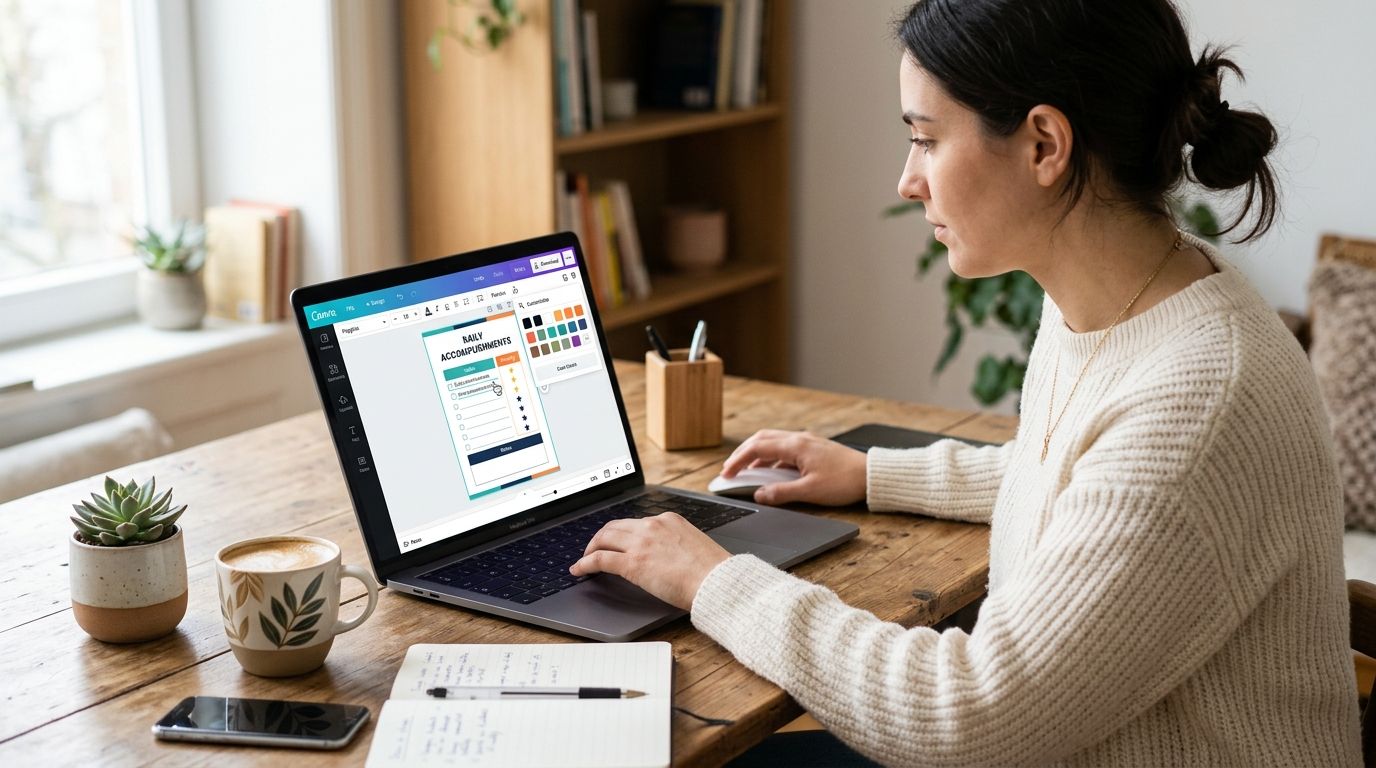
Retyping a printable checklist by hand every time you want a new color scheme or a personalized cover page wastes an hour you don't have. Open your Triptyka checklist in Canva instead, rebuild the editable layer once, and every future version — new color, new name on the cover, new trip dates — takes five minutes.
- Canva's free plan lets you customize checklist template files from Triptyka in under 20 minutes once the editable layer is built.
- Uploading a flattened PDF keeps text locked — you must add new text boxes and checkbox elements on top of the background image.
- Letter-size canvases (8.5 x 11 in) keep print alignment intact; changing canvas size shifts checkbox spacing.
- Canva Pro's Brand Kit speeds up recoloring multi-page bucket-list checklists, but the free tier handles single-page passports fine.
- Save a master copy before editing so you're never rebuilding checkbox rows from scratch again in 2026.
Why this matters
Triptyka's printable passports — ballparks, national parks, bourbon trails, lighthouses — ship as clean, print-ready PDFs on purpose: consistent layout, legible fonts, checkbox rows that line up when printed. That design choice is great for printing and terrible for editing directly, because a PDF is a flat image, not a set of movable Canva objects.
Customizing the template in Canva means recreating the parts you want to change — cover text, color accents, a personal note field — as new layers on top of the original layout. Do that once and you have a reusable master file you can recolor or relabel indefinitely.
Before you start
- A free Canva account works for a single-page checklist. Multi-page passports (national parks, bourbon trail) go faster with Canva Pro's Brand Kit and background remover, but neither is required.
- Your Triptyka checklist file saved as a PDF or high-resolution PNG/JPG, not the printed paper copy.
- The gotcha that trips people up: uploading the PDF into Canva only gives you a background image. The list text, checkboxes, and headers are baked into that image and cannot be clicked, retyped, or recolored on their own. If you skip building a new text layer and just try to double-click the imported PDF expecting editable fields, you'll hit a wall by step three. Plan to rebuild the text and checkbox rows as new elements from the start.
Set up your Canva workspace
- Log into Canva and click Create a design in the top right.
- Search the size dropdown and select Letter (8.5 x 11 in) — this matches the print layout Triptyka's checklists are built for. Choosing a mismatched size is the single most common reason checkbox rows print off-alignment.
- Click Uploads in the left sidebar, then Upload files, and add your saved Triptyka checklist PDF or PNG.
- Drag the uploaded file onto the canvas and resize it to fill the full page. Right-click the image and choose Lock so it stays fixed while you build on top.
Expected result: your checklist background sits locked in place, filling the full Letter-size canvas, ready for new layers.
Rebuild editable text and checkboxes
- Click Text in the left sidebar and select Add a heading or Add a body text box for each line you want to customize — cover title, subtitle, a "Started on" date field.
- Position each new text box directly over the matching line in the locked background image, matching font size roughly to the original for visual consistency.
- To add fillable checkboxes, search checkbox in the Elements tab and drag square or circle outline icons onto each list row, aligning them to the left margin of the original layout.
- Group your new text and checkbox elements by selecting them all and pressing Ctrl/Cmd + G, so they move together if you nudge the layout later.
Expected result: a working editable layer sits on top of your locked background — click any new text box and the words change without disturbing the printed layout underneath.
Customize colors and branding
- Select any new shape or checkbox element and open the color picker in the top toolbar.
- If you're on Canva Pro, click Brand Kit in the left sidebar and save your preferred accent color so it's one click away across every page of a multi-page passport.
- For a gift version, swap the cover heading text to the recipient's name and add a text box for a personal note under the title.
- Use Download in the top right, choose PDF Print, and confirm Flatten PDF is checked before exporting — this bakes your new layers permanently into the file so nothing shifts when it's opened elsewhere.
Expected result: a personalized, recolored version of your original Triptyka checklist that prints exactly as designed.
Customize for digital tracking instead of print
If you're tracking visits on a tablet rather than on paper, the Canva workflow changes slightly: skip the print-safe margins and instead export at a higher resolution for pinch-zooming. Resize your canvas to match your device's screen ratio, keep checkboxes large enough to tap accurately, and export as PNG at 300 DPI instead of PDF Print.
Once exported, that digital version drops straight into a tablet workflow — see the GoodNotes import guide for loading it onto an iPad, or the Notion tracker guide if you'd rather check boxes inside a database than a PDF.
Troubleshooting
- Text looks blurry after export: you likely uploaded a low-resolution screenshot instead of the original PDF. Re-upload the source file at full resolution before exporting again.
- Checkboxes drift out of alignment: this happens when the canvas size doesn't match Letter (8.5 x 11 in). Reset the canvas size and reposition the checkbox layer.
- Font looks different from the original: Canva substitutes a similar font if the exact typeface isn't in its library. Pick a close visual match rather than chasing an exact font name.
- Colors print differently than they look on screen: printers render color differently than screens. Print a single test page before committing to a full multi-page passport in a new color.
- Free plan won't let you remove the PDF background: background remover is a Pro feature. On the free plan, just lock the image layer instead of trying to erase it.
Get the original checklist to customize
Browse Triptyka's printable bucket-list passports before you start editing in Canva.
Customize your workflow: what to do next
Once your Canva master file is built, the real time savings show up on the next checklist, not the first one. Duplicate the file, swap the cover text, and you have a gift-ready version in minutes instead of rebuilding from scratch.
From here, most collectors branch into one of two directions:
- Print it properly. If you don't own a home printer that handles heavier cardstock well, the Staples and CVS printing guide walks through getting a clean, durable copy from a print counter.
- Sync the digital version. Keep your customized file backed up and accessible across devices with the Google Drive sync guide, so a recolored passport isn't stuck on one laptop.
Either path keeps the same core habit: build the editable layer once in Canva, then reuse it for every trip, gift, or color refresh in 2026 and beyond.
FAQ
Can you edit a PDF checklist directly in Canva?
No — uploading a PDF into Canva only gives you a flat background image. You need to add new text boxes and checkbox elements on top to make anything editable.
Do you need Canva Pro to customize a checklist template?
No, Canva's free plan handles a single-page checklist customization fine. Canva Pro's Brand Kit and background remover speed up multi-page passports but aren't required.
What canvas size should you use for a printable checklist?
Use Letter (8.5 x 11 in) to match standard print layouts. A mismatched canvas size is the most common reason checkbox rows shift out of alignment when printed.
How do you add checkboxes in Canva?
Open the Elements tab, search checkbox, and drag a square or circle outline icon onto your canvas. Align it to the left margin of each list row for a clean look.
Why does the font look different after editing in Canva?
Canva substitutes a similar typeface when the original font isn't in its library. Pick a close visual match instead of trying to match the exact original font.
Can you customize a checklist for digital tracking instead of printing?
Yes — resize the canvas to match your tablet's screen ratio, keep checkboxes tap-sized, and export as a high-resolution PNG instead of a print PDF.
How do you keep your customized checklist from drifting when you edit it later?
Lock the original background image layer and group your new text and checkbox elements together, so future edits move as one unit instead of shifting piece by piece.
One last thing
Save your customized Canva file as a template (File > Make a copy before every edit) instead of overwriting the original — collectors who skip this step end up rebuilding the checkbox layer from zero the next time they want a different color, which defeats the entire point of doing this once in Canva.